
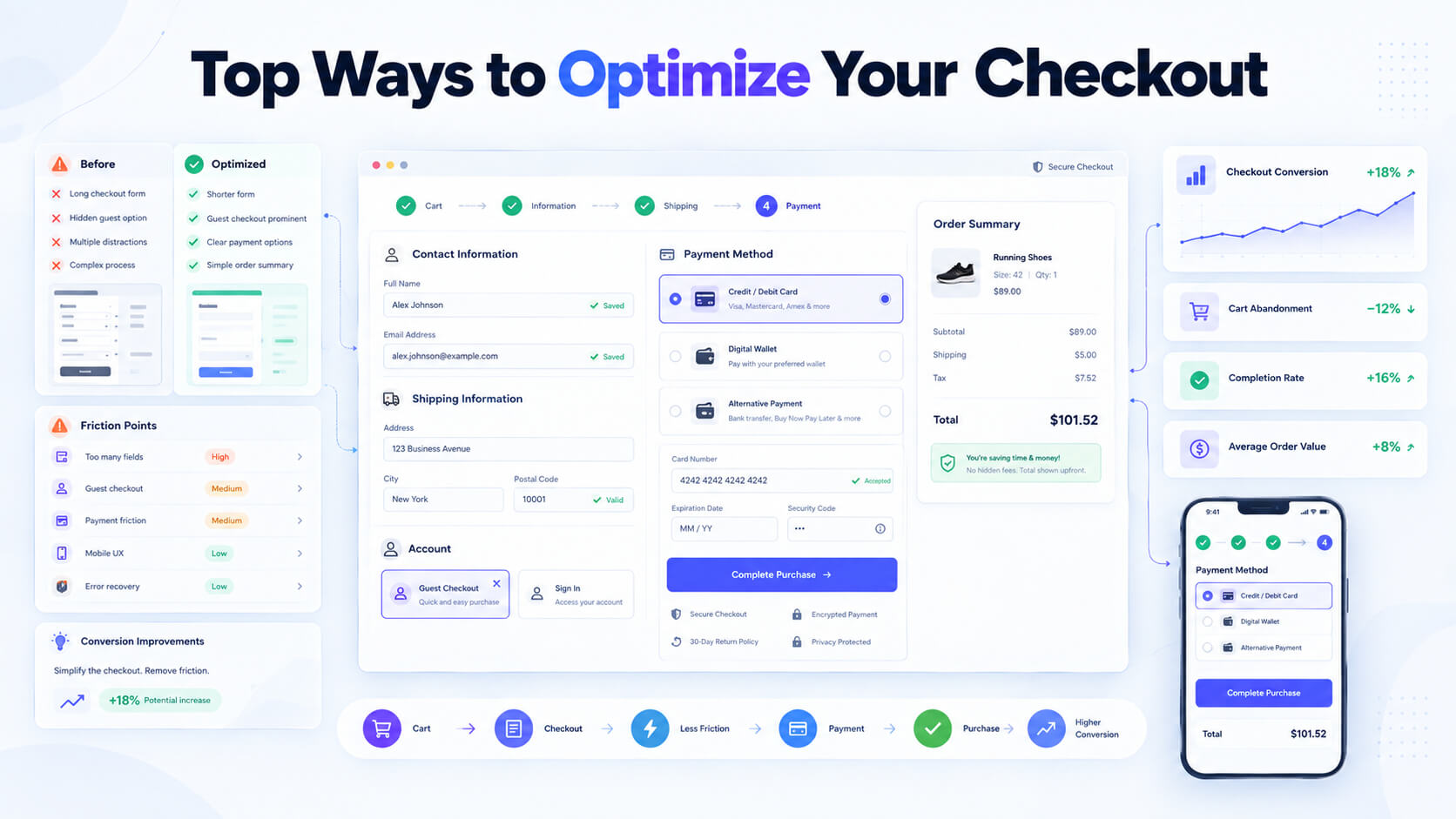
A customer can be ready to buy, add the right product to their cart, and still leave when they reach the checkout. Too many form fields, unexpected shipping costs, limited payment options, confusing errors, or a poor mobile experience can all create enough friction to stop a purchase.
That’s why improving checkout means making the buying process easier, not adding extra features. It’s about making the buying process simple, clear, and easy to complete. For WooCommerce stores, small improvements to the checkout can make a noticeable difference in how customers move from cart to order.
In this guide, we’ll cover practical ways to optimize WooCommerce checkout, reduce abandonment, improve the customer experience, and create more opportunities to increase revenue.
What Is Checkout Optimization?
Checkout optimization means making your checkout page easier for customers to use. The goal is to remove unnecessary steps and make it simple for customers to complete their orders.
Make checkout easier by reducing unnecessary fields, improving the mobile layout, displaying all costs upfront, and offering familiar payment options. Express checkout can also help customers complete their orders faster.
You can test order bumps and cross-sells to encourage customers to add related products to their purchases. Keep these offers relevant to their needs to increase order value without making checkout more complicated.
Why Does Checkout Optimization Matter?
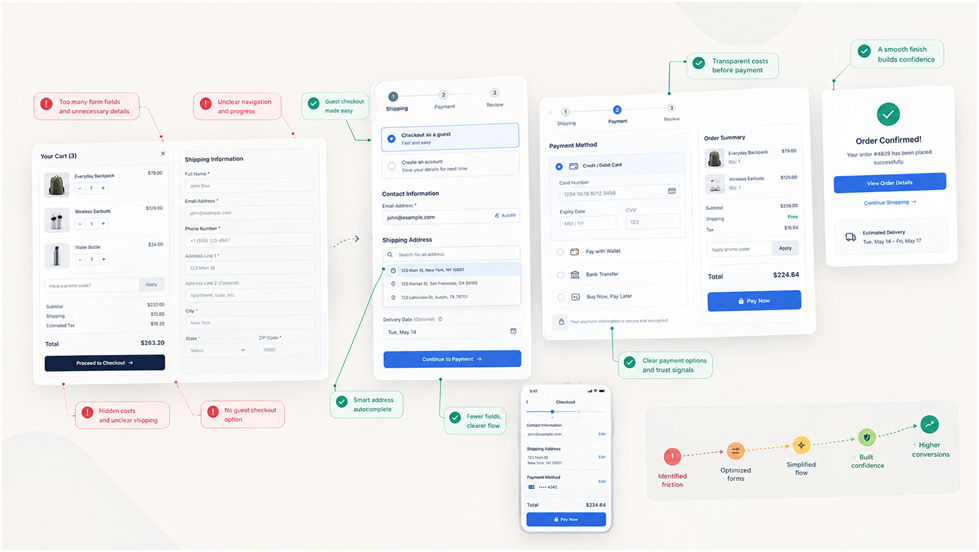
Getting shoppers to your checkout page doesn’t guarantee they’ll complete their purchase. A confusing layout, slow loading, unexpected fees, too many form fields, or limited payment options can cause them to leave.
Trust is equally important. Show the total cost clearly, offer reliable payment methods, and make your store’s policies easy to understand. Customers should feel comfortable sharing their personal and payment details.
A smooth checkout experience makes buying easier, helps reduce abandoned carts, and gives your store a better chance of turning interested shoppers into paying customers.
Top 20 Ways to Optimize Your Checkout
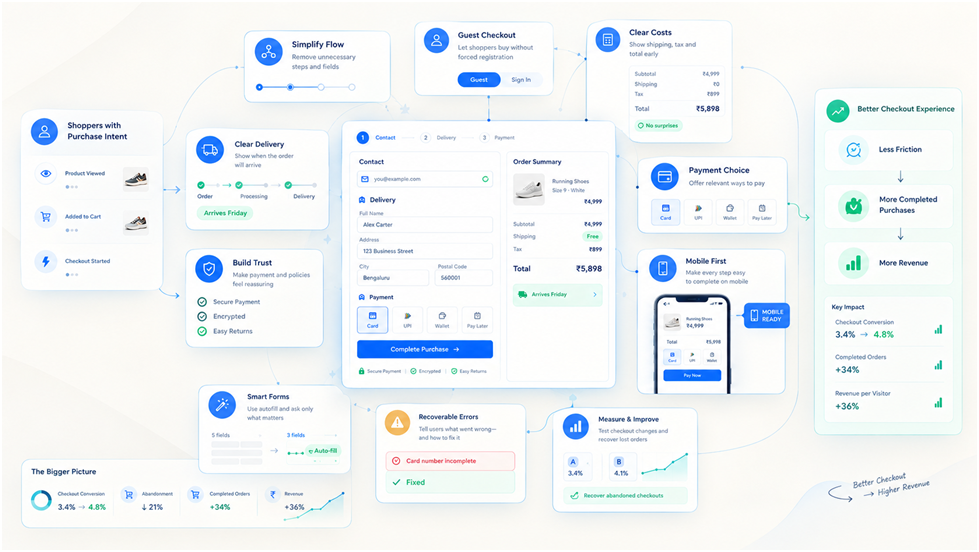
Make checkout simple and convenient so customers can finish their orders without unnecessary steps. Here’s how to improve the process:
1. Audit Your Current Checkout First
Before making changes, check where customers drop off and whether there are issues with mobile use, payments, or forms. Place a few test orders using different products, devices, payment methods, addresses, and shipping options to spot problems analytics may miss.
2. Remove Unnecessary Checkout Fields
Review each checkout field and remove anything you don’t really need. Keep only the information required for payment, delivery, tax, or customer support. The goal is to make the form shorter and easier to complete
3. Enable Guest Checkout
Let customers place orders without signing up or creating an account. This removes an extra step, especially for first-time buyers. If needed, let customers create an account after completing the purchase.
4. Improve the Mobile Checkout Experience
A checkout that works well on desktop may still be difficult to use on mobile. Make sure fields are easy to tap, buttons are clear, and payment forms, dropdowns, coupon codes, and error messages work properly on smaller screens. Test the full checkout on different devices and browsers where possible.
5. Show the Total Cost Clearly
Show customers the full cost before they place the order, including product price, shipping, taxes, discounts, fees, and the final total. If shipping costs depend on location, explain how they are calculated. Avoid unexpected charges at the final payment step.
6. Offer the Right Payment Methods
Offer payment methods your customers are comfortable using, such as cards, digital wallets, bank transfers, or local payment options. Choose a few relevant and reliable options instead of adding too many, which can make checkout confusing.
7. Add Express Checkout
Express checkout speeds up purchases by letting customers use their saved payment and delivery details. It can be especially useful for returning customers and mobile shoppers. Keep the option easy to find without making other payment methods harder to access.
8. Use Clear Field Labels and Instructions
Use simple labels so customers know exactly what information to enter. Clearly mark required and optional fields, and add short instructions when needed. For example, explain why a phone number is required if it is used for delivery updates.
9. Make Error Messages Helpful
Tell customers what went wrong and how to fix it. Instead of showing a message like “Something went wrong,” highlight the affected field and provide a clear solution. This is especially important for payment and address errors.
10. Make Shipping and Delivery Options Clear
Display shipping fees and estimated delivery dates before customers confirm their orders. If you offer delivery dates or time slots, make them easy to select and only show options available for the customer’s location and order.
11. Use Checkout Upsells Carefully
Suggest related products that make sense with the items customers are already buying. For example, you could suggest a laptop sleeve when someone buys a laptop. Keep these offers relevant and simple so they don’t distract customers from completing the main purchase.
12. Use Order Bumps Carefully
An order bump is a small extra offer shown during checkout, such as an accessory, warranty, or support service. Keep it relevant, optional, and clear so customers understand what they are getting and what it costs.
13. Add Useful Trust Signals
Give customers reasons to feel comfortable completing their purchase. Show useful information such as payment options, return policies, customer support details, reviews, or guarantees near the checkout.
14. Remove Unnecessary Distractions
Keep the checkout page simple and focused on helping customers finish their orders. Remove unnecessary menus, banners, popups, social feeds, and unrelated offers that can take customers’ attention away from the order.
15. Handle Coupon Codes Carefully
A prominent coupon field may encourage customers to leave your site and search for discount codes. If you use coupons, consider keeping the field less prominent or applying eligible discounts automatically.
16. Improve Checkout Speed
A slow checkout can make customers leave before completing their purchase. Remove unnecessary scripts, plugins, images, and third-party tools that slow down the page while keeping essential payment and security features working.
17. Choose the Right Checkout Format
A one-page checkout keeps everything together, while a multi-step checkout breaks the process into smaller sections. Choose the format that makes checkout easiest for your customers, then test how it affects completed orders.
18. Improve the Journey From Cart to Checkout
Review the entire journey from the product page to the cart, checkout, payment, and confirmation page. Let customers easily check their items, adjust quantities, apply discounts, and see shipping fees before paying.
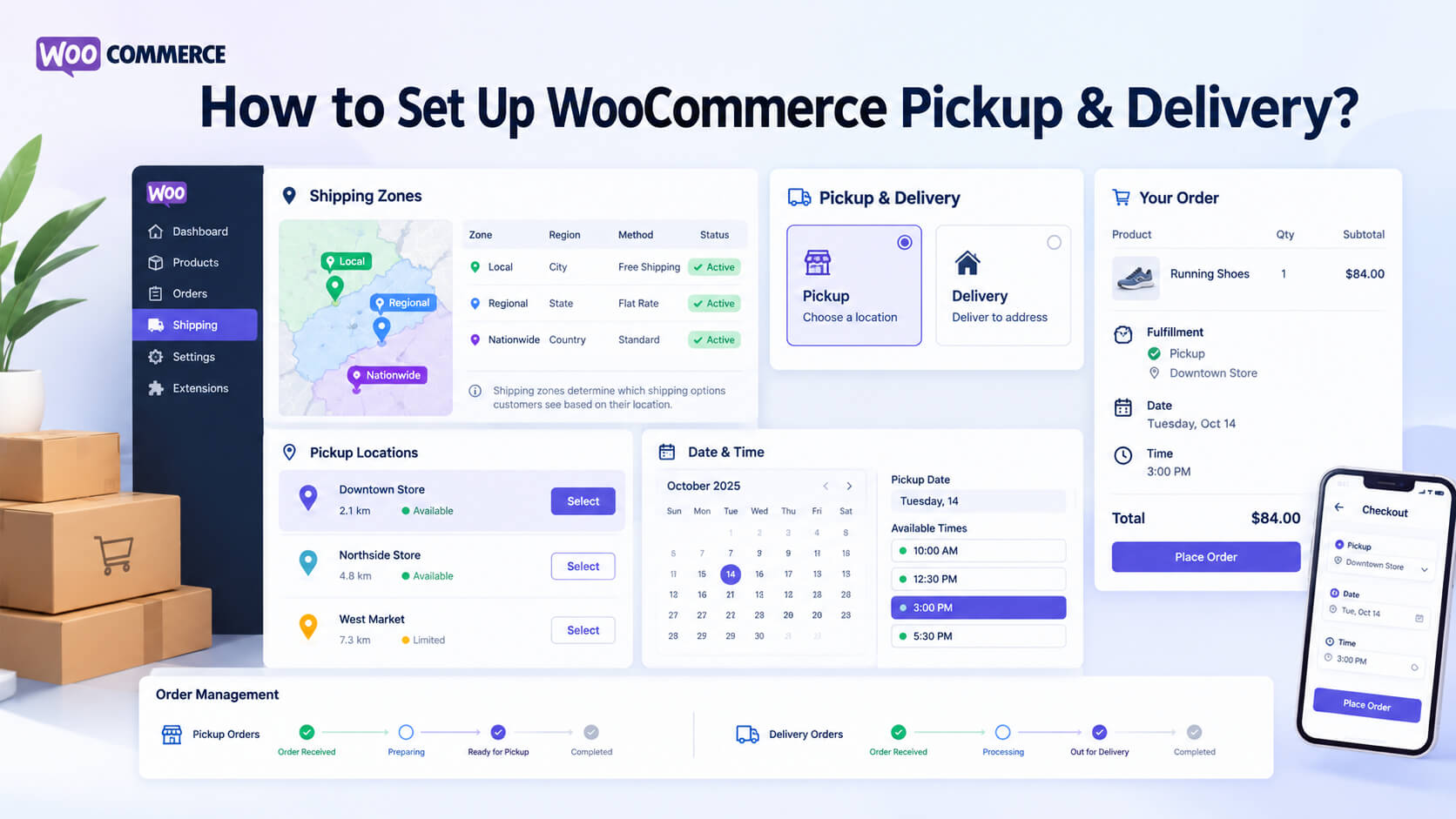
19. Offer Convenient Delivery and Pickup Options
Options such as local pickup, local delivery, and delivery time slots can make checkout more convenient. Show only the options available for the customer’s location and order.
20. A/B Test Important Checkout Changes
Test important changes instead of assuming they will improve checkout. Try different layouts, form lengths, payment options, shipping displays, trust signals, or order bumps, and track completed purchases and other relevant metrics.
How to Increase Revenue Without Increasing Traffic?
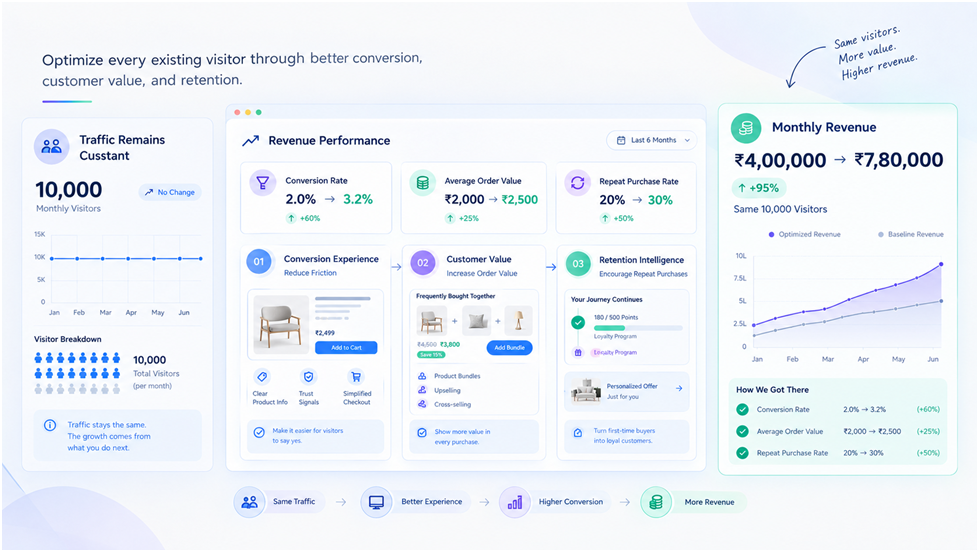
You do not always need more website visitors to increase your ecommerce revenue. Sometimes, improving the way your existing visitors shop can help you generate more sales.
One way is to improve your checkout conversion rate. If more visitors complete their purchases, you can increase sales without bringing in more traffic.
You can also increase the average order value with relevant cross-sells, bundles, upgrades, and order bumps. Relevant offers can encourage customers to add more items to their orders.
Reducing cart and checkout abandonment can also help recover lost sales. Making checkout faster, simpler, and easier to use can help more customers complete their orders.
Payment problems are another area to check. If customers often face payment failures, improving your payment setup or offering other payment methods can help reduce failed orders.
Finally, focus on existing customers too. A smooth post-purchase experience can encourage repeat purchases and help increase revenue without depending only on new visitors.
Checkout Optimization Plugins
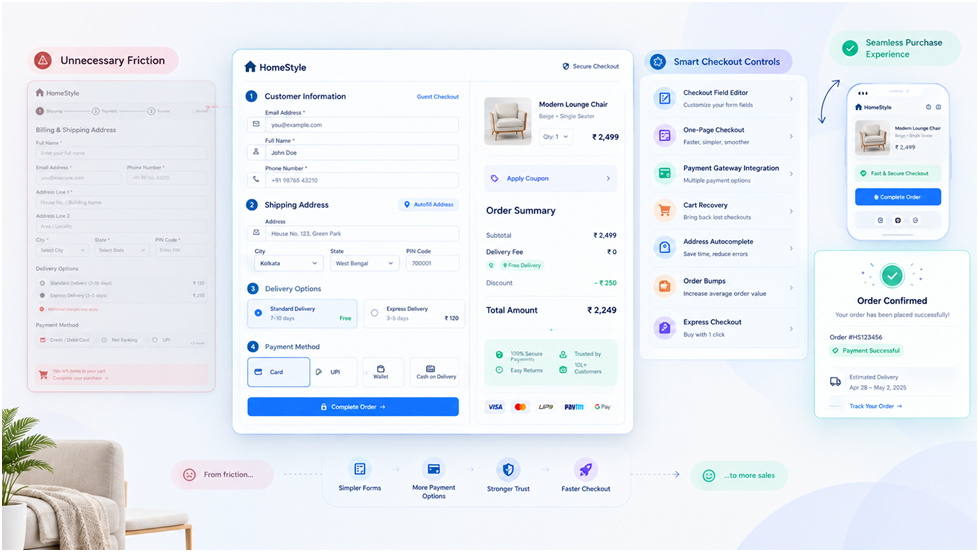
You can use WordPress and WooCommerce plugins to make your checkout process simpler and more convenient for customers. Depending on the plugin, you may get features for editing checkout fields, creating one-page checkout, adding order bumps, improving the cart, or tracking checkout performance.
Choose a plugin based on your checkout needs, not the number of features it offers. If your checkout form is too long, look for a plugin that lets you remove or customize fields. If you want to add order bumps, look for a plugin that handles them well.
Before installing a plugin, check whether it works with your WooCommerce version, payment gateways, checkout type, theme, and other plugins. This can help you avoid compatibility problems after installation.
Common Checkout Optimization Mistakes
Even minor checkout problems can cost you sales. Watch out for these common mistakes to make buying easier for your customers.
1. Adding Too Many Checkout Features: More features do not always make checkout better. Too many fields, popups, offers, or payment options can make the process confusing.
2. Forcing Customers to Create an Account: Requiring customers to create an account adds another step. Let new customers place orders without having to create an account.
3. Hiding Extra Costs Until the End: Show the total cost clearly before customers pay. Unexpected shipping fees, taxes, or other charges can cause customers to leave.
4. Ignoring Mobile Checkout: Many customers shop from their phones. Ensure customers can easily fill out forms, tap buttons, and select payment methods on their phones.
5. Using Too Many Checkout Fields: Extra fields make checkout longer. Remove fields you do not need and keep only the information required to complete the order.
6. Making Coupon Codes Too Prominent: A large coupon box can make customers leave your website to search for discount codes. Keep the coupon option available without making it too distracting.
7. Adding Too Many Upsells and Order Bumps: Upsells and order bumps can increase order value, but too many offers can distract customers. Keep them simple and related to the main purchase.
8. Ignoring Checkout Speed: A slow checkout can frustrate customers who are ready to pay. Remove unnecessary scripts, plugins, and third-party tools that may slow down the page.
9. Ignoring Plugin Compatibility: Checkout plugins may not work properly with every WooCommerce setup. Check compatibility with your checkout type, payment gateway, theme, and other plugins before installing anything.
10. Skipping Full Checkout Testing: Test the entire buying process, not just the checkout form. Try different products, payment methods, shipping options, and devices to confirm that orders go through without errors.
Checkout Optimization Checklist
Before considering your checkout optimized, complete a test purchase and check each part of the customer journey:
- Guest Checkout: Customers can complete their purchase without creating an account, where appropriate.
- Checkout Fields: Only necessary fields are included.
- Total Cost: Product prices, shipping, taxes, discounts, and fees are clearly shown.
- Payment Methods: All available payment options work correctly.
- Express Checkout: Fast payment options are available where they make sense.
- Mobile Experience: Customers can easily complete checkout on phones and tablets.
- Error Messages: Errors clearly explain what went wrong and how to fix them.
- Delivery Options: Clearly display available shipping methods, their costs, and estimated delivery dates.
- Trust Signals: Relevant payment, return, refund, support, or guarantee information is visible.
- Distractions: Unnecessary popups, banners, and navigation elements have been removed.
- Page Speed: Checkout pages load quickly and work reliably.
- Test Orders: Orders can be completed successfully from start to finish.
- Abandoned Checkout: Tracking or recovery tools are set up where applicable.
- Performance Tracking: Checkout conversion, completed orders, revenue, and other useful metrics are monitored.
Final Thoughts
Good checkout optimization starts with keeping the buying process simple. You do not need a checkout with too many features. You need one that helps customers place their orders easily.
Start by removing unnecessary fields, showing the total cost clearly, offering useful payment methods, and making the checkout work well on mobile. Clear error messages and fewer distractions can also help.
Once the basics are working well, you can test features such as express checkout, order bumps, cross-sells, delivery options, or different checkout layouts. Check your store data to see which changes work best.
If you use WooCommerce, check plugin compatibility before making changes. Also test the full checkout process, from adding a product to the cart to placing the order.
The goal is simple: make checkout easy and help more customers complete their purchases.
Frequently Asked Questions
1. What is checkout optimization?
Checkout optimization means improving the purchase process so customers can complete orders with less friction. It can include simpler forms, clearer costs, better payments, and improved mobile usability.
2. How can I improve my WooCommerce checkout?
Remove unnecessary fields, consider guest checkout, show costs clearly, offer relevant payment methods, improve mobile usability, and fix confusing errors.
3. Does a one-page checkout increase conversions?
It can reduce the number of steps, but it isn’t guaranteed to increase conversions. Test it against your current checkout and compare the results.
4. Should WooCommerce checkout allow guest purchases?
Guest checkout can make purchasing easier for customers who don’t want to create an account. Whether to enable it depends on your store’s needs.
5. How can I reduce WooCommerce checkout abandonment?
Make shipping and pricing clear, simplify the checkout, support reliable payment methods, improve mobile usability, and fix checkout errors.