
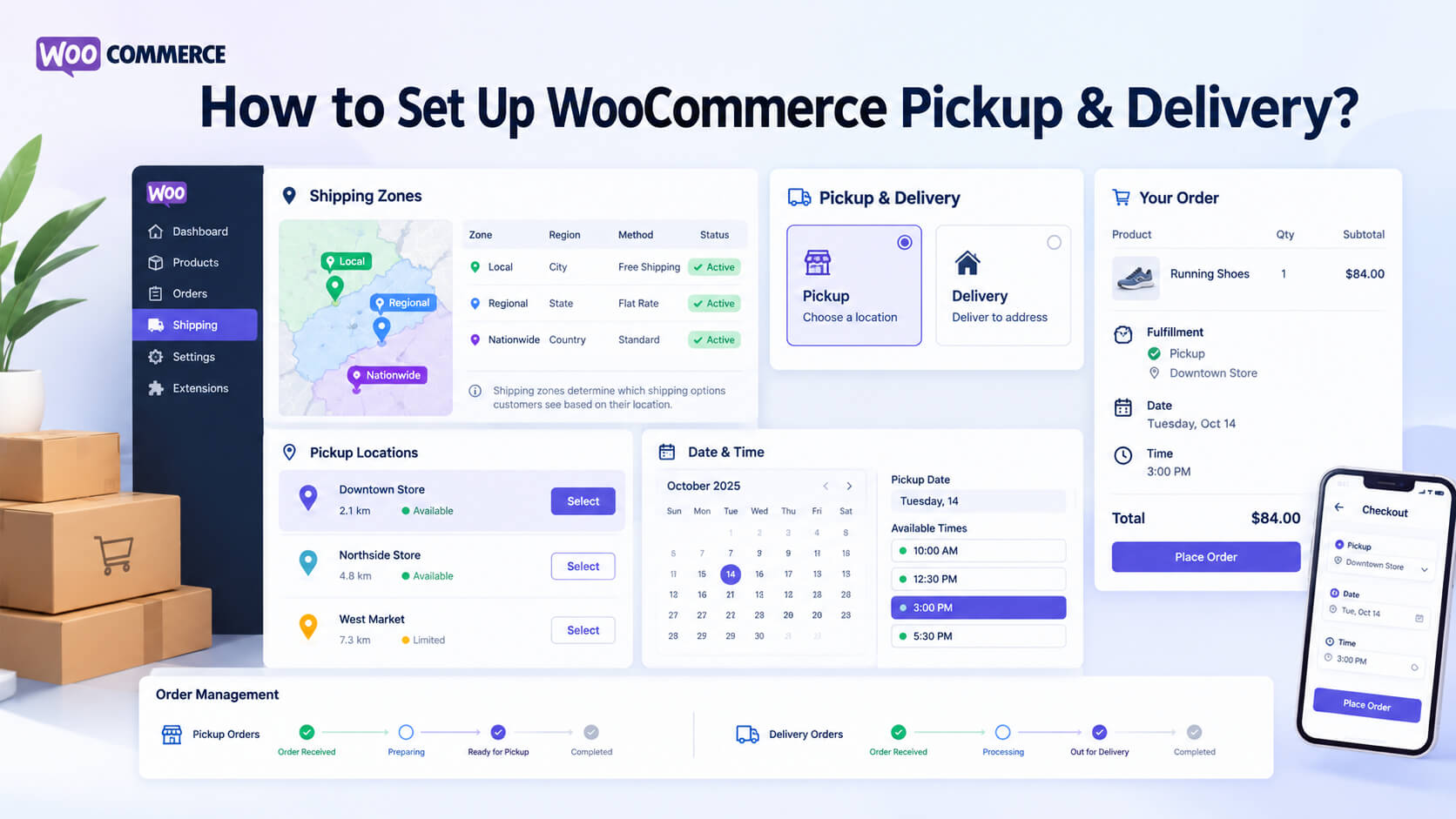
Not every customer wants to wait for regular shipping. If you sell to customers in a specific area, local pickup and delivery in WooCommerce can give them faster and more convenient options.
This setup is useful for local businesses such as restaurants, grocery stores, bakeries, florists, pharmacies, and retail shops. Once customers place an order online, they can decide whether to visit the store for collection or receive their purchase at home.
WooCommerce offers a built-in Local Pickup option. If you need features like scheduled pickups, delivery time slots, multiple pickup locations, or delivery fees, you may need an additional plugin or extension.
In this guide, we’ll explain how to set up WooCommerce pickup and delivery, including pickup locations, fees, dates, and time slots.
How Does WooCommerce Order Fulfillment Work?
WooCommerce allows you to sell products online and offer customers different ways to receive their orders. Depending on your store’s setup, customers can collect their purchases from a physical location or have them delivered to their doorstep.
Customers can place an order online and collect it from your store once it’s ready. If they choose delivery, your team sends the order to their address. You can also limit deliveries to specific areas and set delivery charges.
Offering both options gives customers more choice. You can add pickup locations, delivery dates, and time slots so they can decide where and when to receive their orders.
How WooCommerce Pickup and Delivery Works
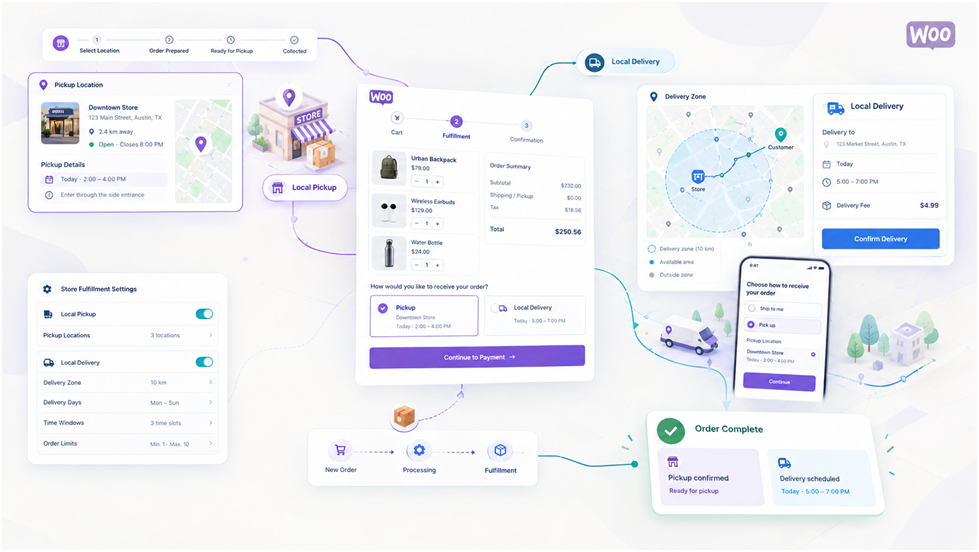
Customers add products to their cart and head to checkout, where they can choose pickup or delivery. Depending on your store’s settings, they may also select a pickup location, enter a delivery address, choose a date and time, and complete their payment.
Once the order is placed, your team gets it ready. Customers can then collect it from the selected location or have it delivered to their doorstep.
The options you can offer depend on your WooCommerce setup. The basic features include Local Pickup and standard shipping. For multiple pickup locations, scheduled orders, time slots, or flexible fees, you may need an additional plugin.
Before setting up your store, decide how you want to handle orders and which options your team can manage. This will help you choose the right WooCommerce checkout plugin for your business.
What to Prepare Before Setting Up Pickup and Delivery?
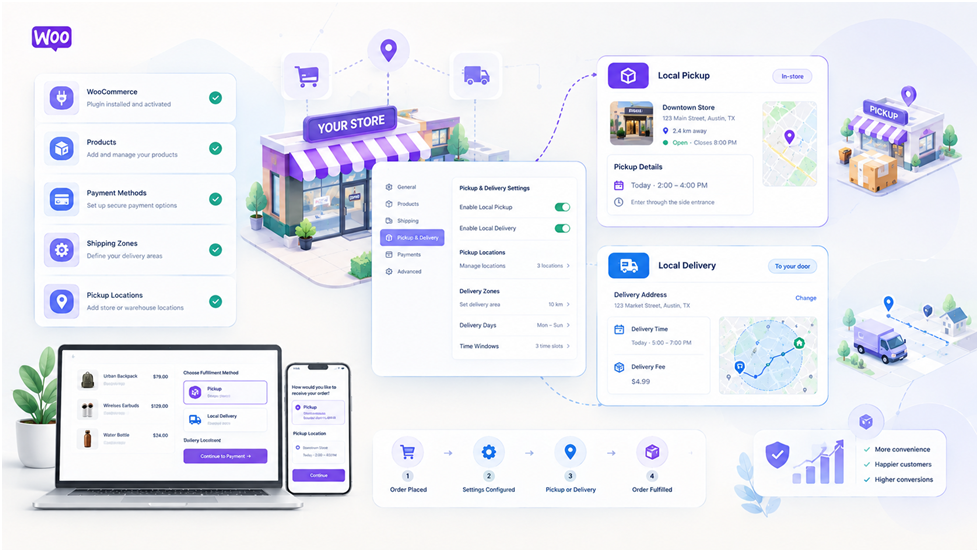
Before configuring WooCommerce, decide how your store will manage pickup and delivery orders. Identify your pickup locations, delivery areas, operating hours, available days, fees, and order preparation times.
You can also set minimum order amounts, daily order limits, and cutoffs for same-day delivery. These rules help your team manage orders smoothly and avoid taking on more orders than it can handle.
Decide which products customers can collect in-store, receive by delivery, or get through either option. Some items may be pickup-only because of their size or special handling needs. Setting these restrictions early helps prevent confusion and checkout problems.
Finally, plan how your store will handle holidays, unavailable dates, customer notifications, payment methods, and schedule changes. Having these details ready will make the setup process easier.
How to Enable Local Pickup in WooCommerce?
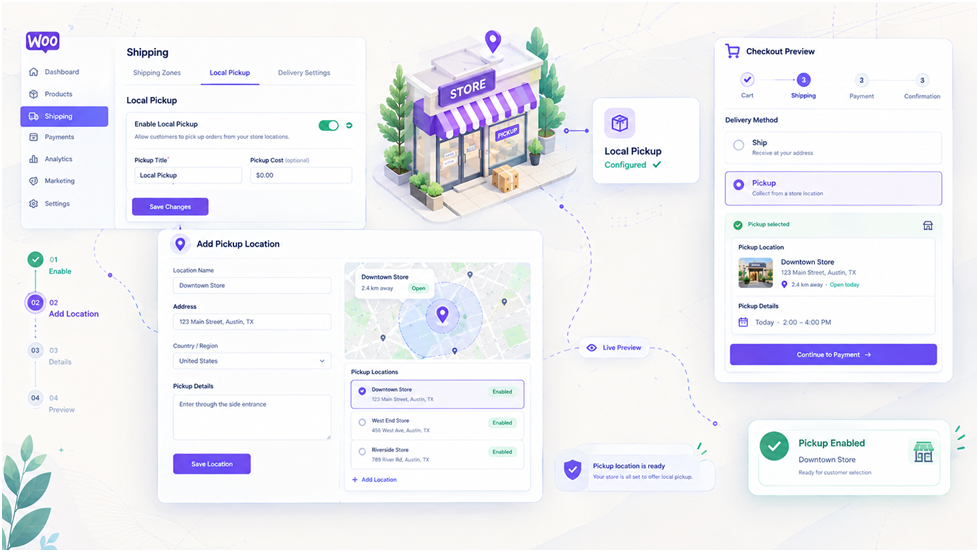
WooCommerce has a built-in Local Pickup option that lets customers collect their orders instead of having them delivered. The setup depends on whether your store uses the newer Checkout Block or the classic checkout.
First, check which checkout type your WooCommerce store uses. The setup steps for Local Pickup may differ depending on your checkout type.
Step 1: Check Your Checkout Setup
If you’re using the Checkout Block, go to WooCommerce → Settings → Shipping → Local Pickup. Here, you can turn on Local Pickup, change its name, add a pickup fee, and set your pickup locations.
If you’re using the classic or shortcode-based checkout, Local Pickup is added through your shipping zones. In this case, you’ll need to add it to the zone where you want pickup to be available.
Step 2: Set Up a Shipping Zone
For the classic checkout, go to WooCommerce → Settings → Shipping → Shipping Zones. Create a new shipping zone or open an existing one where you want to offer Local Pickup.
Step 3: Add the Local Pickup Method
Open the shipping zone and click Add shipping method to add the pickup option. Select Local Pickup and configure its settings, including the tax status and any applicable pickup fee.
Give the option a clear name, such as Store Pickup, so customers know what it means at checkout. If you use multiple shipping zones, review their settings and order to ensure customers see the correct options for their location.
Step 4: Add Pickup Instructions
Give customers clear information about where and when they can collect their orders. You can mention the pickup location, opening hours, preparation time, and anything they need to bring.
For example:
- Pickup Location: Downtown Store
- Pickup Hours: 10 AM–7 PM
- Ready Time: Within 2 hours
- Instructions: Bring your order confirmation.
Step 5: Test the Checkout
Place a test order before making Local Pickup available to customers. Check that the option appears correctly, the right fee is shown, and the pickup instructions are easy to find.
Also check the order in your WooCommerce dashboard to make sure your team can identify pickup orders easily. If you’re using the Checkout Block, make sure you haven’t added the same pickup option through both the new Local Pickup settings and the shipping zones.
How to Add Local Delivery in WooCommerce?
Local delivery lets you deliver orders directly to customers within a specific service area. Before setting it up, decide exactly where your business can deliver and how you will determine whether an address is eligible.
You can define your delivery area using postal codes, cities, regions, neighborhoods, or delivery zones. For example, a restaurant may deliver only to nearby areas, while a local shop may cover several towns around its store.
Define Your Delivery Area
Start by creating a delivery zone that matches the area your business can actually serve. Once the zone is ready, add your local delivery method and set the delivery cost.
You may also need to set rules for minimum order amounts, free delivery, same-day delivery, preparation times, delivery distance, and product availability. These rules help prevent orders that your business cannot fulfill.
Once everything is set up, test addresses both inside and outside your delivery area. This ensures that customers within your service area can choose delivery, while those outside it do not see an unavailable option.
How to Add Pickup and Delivery Date & Time Slots?
Local pickup and delivery tell customers how they will receive their order. Date and time slots tell them when they can receive or collect it. This can be useful for businesses that prepare orders in advance or have limited delivery capacity.
Depending on your needs, you can let customers choose a pickup or delivery date, select a time slot, and see any related fees. You can also set preparation times, same-day order cutoffs, holidays, and limits on how many orders can be accepted in each slot.
For example:
- Delivery Date: Saturday
- Time Slot: 2 PM–4 PM
- Delivery Fee: $5
- Minimum Order: $25
Time slots can also help you manage your workload. If you can handle only a certain number of deliveries during a two-hour period, you can limit the number of orders customers can book for that slot when your scheduling solution supports this.
The exact features depend on the plugin or extension you use. Some WooCommerce delivery extensions support dates, time slots, fees, pickup schedules, capacity limits, and rules based on products or shipping methods.
How to Set Up Multiple Pickup Locations?
If you have more than one store, branch, warehouse, or collection point, you may want customers to choose where they will pick up their orders.
For each location, add basic information such as its name, address, opening hours, available pickup days, and pickup instructions. You may also need different rules for products, order limits, or fees at each location.
For example:
- Location A: Downtown
- Location B: Northside
- Location C: Westside
Customers can then choose the location that is most convenient for them. This can be especially useful when your business has several branches serving different areas.
WooCommerce’s newer Local Pickup setup supports multiple pickup locations when using the Checkout Block. If you need more options for scheduling, product eligibility, or pickup limits, you may need an additional pickup or delivery plugin.
How to Set Different Delivery Fees?
You don’t always have to charge the same delivery fee for every order. The fee can depend on the customer’s location, order value, or delivery rules.
The simplest approach is a flat delivery fee. You can also offer free delivery, free delivery above a certain order value, different fees for different zones, or product-specific delivery charges.
For example:
- Local Zone: $3 delivery
- Extended Zone: $6 delivery
- Orders Above $50: Free delivery
Choose a pricing method that matches your actual delivery costs. If some areas take more time or cost more to serve, your delivery fees can reflect those differences.
How to Set Minimum Orders and Delivery Rules?
Minimum order values can help make local delivery practical for your business. For example, you could require customers to spend at least $20 before the local delivery option becomes available.
You can also create other rules based on your delivery process. These may include preparation time, same-day order cutoffs, maximum delivery distance, free-delivery thresholds, or a maximum number of orders for each time slot.
Some products may also need special rules. For example, large, fragile, temperature-sensitive, or hard-to-transport items may be available for pickup only. If your store has many fulfillment rules, a dedicated delivery or scheduling extension can make these settings easier to manage.
How to Add Pickup and Delivery Options to WooCommerce Checkout?
Your checkout should make it easy for customers to choose how they want to receive their order. Keep the options clear and show only the choices that apply to the customer’s order and location.
For example:
How would you like to receive your order?
- Local Pickup
- Local Delivery
When customers select pickup, display the available pickup locations. If they choose delivery, show the address details and any applicable delivery charges. If you offer scheduling, let customers choose an available date and time slot after selecting their fulfillment method. Avoid asking customers to go through options that do not apply to their order.
A simple checkout flow can reduce confusion and make it easier for customers to complete their orders. Before going live, test both pickup and delivery with different products, addresses, dates, and payment methods.
WooCommerce Pickup and Delivery Plugins
WooCommerce includes basic local pickup features, so a separate plugin may not be needed for simple stores. If you have one location and only offer pickup, the built-in option may be enough.
A dedicated plugin is useful when you need features such as delivery dates, time slots, multiple pickup locations, or different delivery fees.
Plugins can also help you manage delivery areas, order limits, product availability, and checkout options more easily.
Before choosing a plugin, decide what your store actually needs. Avoid paying for features you do not need and choose a plugin that can support your future growth.
When You May Not Need a Plugin?
You may not need an additional plugin if your store has a simple fulfillment process. For example, a small bakery with one shop may only need customers to select local pickup during checkout and collect their orders during normal business hours.
Basic WooCommerce functionality can be enough when you only need:
- One pickup location: Customers collect orders from a single store or collection point.
- Basic local pickup: Customers can choose pickup instead of regular shipping.
- Simple shipping zones: You only need basic shipping or delivery rules based on customer location.
- No date or time scheduling: Customers do not need to select a specific pickup or delivery slot.
- Straightforward fulfillment rules: Your store does not need complex restrictions, capacity limits, or product-specific delivery settings.
Starting with the built-in options can also keep your WooCommerce setup simpler. You can always add a plugin later if your pickup or delivery process becomes more complicated.
When a Plugin Makes Sense?
A plugin becomes more useful when your store needs more control over how customers schedule and receive their orders. This is common for restaurants, grocery stores, retailers, florists, and other businesses that handle a large number of local orders.
You may want a plugin if you need:
- Multiple pickup locations: Allow customers to choose a store, branch, or collection point where they want to collect their order.
- Pickup scheduling: Allow customers to select a date for collecting their orders.
- Delivery scheduling: Set separate pickup or delivery charges based on the location or service customers choose.
- Time slots: Offer specific periods such as 10 AM–12 PM or 4 PM–6 PM.
- Capacity limits: Restrict the number of pickup or delivery orders accepted during a particular time slot.
- Advanced delivery rules: Set rules based on location, order value, product type, distance, or other requirements.
- Different fulfillment fees: Charge different pickup or delivery fees depending on the location or selected service.
- Product-specific restrictions: Make certain products available only for pickup or only for delivery.
- More detailed checkout controls: Show relevant pickup, delivery, location, date, and time options directly during checkout.
How to Choose the Right Pickup and Delivery Setup?
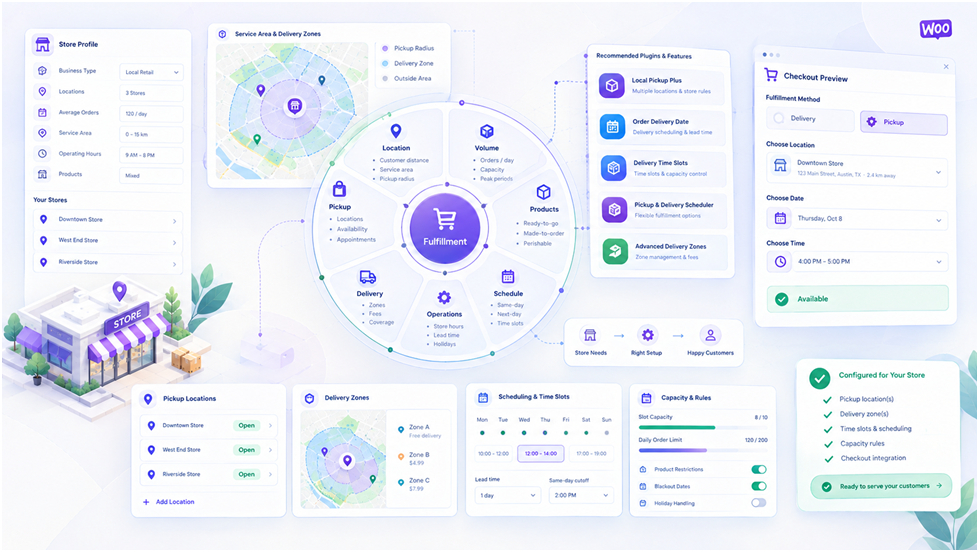
The right setup depends on how your business handles orders, deliveries, and pickups. Choose the features that match your daily fulfillment needs.
One Store + Basic Pickup
If you have one store and only need customers to collect orders, WooCommerce Local Pickup may be enough. You can add the pickup location and basic instructions.
Restaurant
If you run a restaurant, you may need delivery areas, preparation times, pickup options, and time slots. These features help you manage orders during busy hours.
Grocery Store
If you run a grocery store, you may need multiple pickup and delivery slots, order limits, and product restrictions. These features make it easier to manage daily orders.
Retail Store
If you have multiple retail branches, you may need multiple pickup locations and product availability rules. This lets customers choose a suitable store for pickup.
Local Delivery Business
If delivery is your main service, you may need to set delivery areas, fees, time slots, order limits, and same-day delivery cutoffs. These settings help you manage local deliveries and keep orders organized.
How to Improve the Pickup and Delivery Experience?
Make pickup and delivery information clear before customers reach checkout. Let them know where pickup is available, whether their address is covered, and which products can be picked up or delivered.
Keep your available dates and time slots updated. If a slot is full or your store is closed on a particular day, customers should not be able to select it.
Provide clear pickup instructions, including the location, opening hours, preparation time, and collection process. Also show delivery fees clearly before customers place their orders.
Order notifications can also improve the experience. Customers can receive updates when their order is received, being prepared, ready for pickup, out for delivery, or completed.
Finally, test the checkout process on mobile devices. Make sure customers can easily view and choose their preferred pickup or delivery option on smaller screens.
How to Manage Pickup and Delivery Orders?
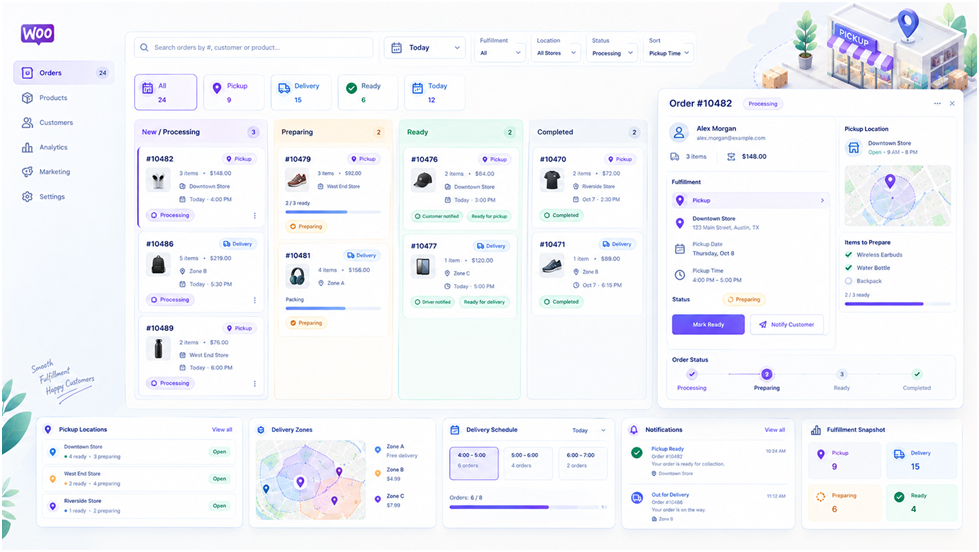
Once a customer places an order, your team needs a clear process to prepare and complete it. The pickup or delivery details selected at checkout should be easy for your staff to find.
For Pickup Orders
Your team receives the order, prepares it, marks it as ready, and notifies the customer. The customer can then collect the order from the selected location.
For Delivery Orders
Your team prepares the order and sends it to the customer’s address. Once the delivery is complete, you can mark the order as completed in WooCommerce.
The process depends on the size and needs of your business. A small bakery may handle orders directly from the WooCommerce dashboard, while a larger delivery operation may need dedicated staff, drivers, inventory systems, or order management tools.
The goal is to keep the process clear and consistent. Your team should know which orders need pickup or delivery, when each order must be ready, and where it needs to go.
Common WooCommerce Pickup and Delivery Mistakes
Small pickup and delivery issues can lead to delays and unhappy customers. Avoiding common mistakes can help keep your orders running smoothly. Here are some of the most common ones:
1. Not Explaining Pickup and Delivery Clearly: Customers should know where to pick up their order, when it will be ready, and how the process works.
2. Setting Up Delivery Zones Incorrectly: Customers outside your service area should not see local delivery, while eligible customers should be able to select it.
3. Accepting Too Many Orders: If your team can handle only a limited number of orders at a time, set limits for pickup and delivery slots where possible.
4. Forgetting Holidays and Unavailable Dates: Block days when your store is closed or cannot fulfill pickup and delivery orders.
5. Hiding Delivery Fees: Show delivery charges clearly before customers place their orders, especially when fees vary by location or order value.
6. Using Too Many Plugins: Multiple shipping, checkout, and fulfillment plugins can sometimes conflict. Test your complete checkout after adding or changing an extension.
WooCommerce Local Pickup vs Delivery vs Shipping
WooCommerce gives you different ways to fulfill orders. The right option depends on where your customers are and how you want to deliver their orders.
Local Pickup
Local Pickup lets customers order online and collect their orders from your store or pickup location. It is a simple option for customers who live nearby.
Local Delivery
Local Delivery means delivering orders directly to customers within your service area. You can set delivery areas and, if needed, charge delivery fees.
Shipping
Shipping sends orders to customers through a shipping carrier. It is useful when you sell to customers outside your local delivery area.
Can You Offer All Three?
Yes. You can offer local pickup, local delivery, and shipping if your business can manage all three. For example, a retailer can offer pickup to nearby customers, local delivery within the city, and shipping for customers in other areas.
WooCommerce Pickup and Delivery vs Standard Shipping
Standard shipping generally means that the store hands the order to a shipping carrier, which then transports and delivers it to the customer. This is useful when you sell to customers across a wider geographic area.
Local delivery is different because the store or its delivery partner serves a defined local area. This can give the business more control over delivery schedules, service areas, and delivery windows.
Pickup removes the delivery stage completely. Instead of waiting for a driver or carrier, the customer visits the store or another designated pickup location and collects the order.
The right combination depends on your service area, products, delivery capacity, operating hours, and what your customers expect from the ordering process.
How to Test Your WooCommerce Pickup and Delivery Setup?
Before launching, test different pickup and delivery situations to make sure everything works correctly from checkout to fulfillment.
Start with a pickup order. Select a pickup location, complete the checkout, and check that the location, instructions, and order details appear correctly.
Next, test local delivery with an address inside your service area. Make sure the correct delivery option, fee, date, and time slot appear at checkout.
Also test an address outside your delivery area. The local delivery option should not be available if the address is outside your service area.
Finally, test other important conditions, such as unavailable dates, full time slots, minimum order values, pickup-only products, delivery-only products, discounts, payment methods, and mobile checkout.
If you use the Checkout Block, test the checkout there as well. This helps confirm that your pickup, delivery, and shipping settings work correctly with your actual checkout setup.
Final Thoughts
WooCommerce can handle both local pickup and delivery, but the right setup depends on your business. A small store may only need basic Local Pickup, while restaurants, grocery stores, and multi-location stores may need more features.
Before choosing a plugin, decide where you deliver, where customers can pick up orders, what you will charge, and whether you need dates or time slots.
Once everything is set up, test the complete checkout and fulfillment process. Make sure the right options, fees, locations, and schedules appear for different customers.
A simple and well-tested WooCommerce pickup and delivery setup makes ordering easier for customers and helps your team manage orders more smoothly.
FAQs
1. Does WooCommerce support local pickup?
Yes. WooCommerce includes a built-in Local Pickup option for stores that want customers to collect their orders.
2. How do I add local pickup to WooCommerce?
Go to WooCommerce → Settings → Shipping → Shipping Zones, select a zone, and add Local Pickup as a shipping method.
3. Can WooCommerce offer both pickup and delivery?
Yes. You can offer both options so customers can choose between collecting their order or having it delivered.
4. Can customers select a pickup date and time?
Yes, but advanced pickup dates and time slots usually require an additional scheduling plugin or extension.
5. Do I need a plugin for WooCommerce local pickup?
Not for basic pickup. A plugin is useful if you need features such as multiple locations, time slots, scheduling, or advanced pickup rules.