
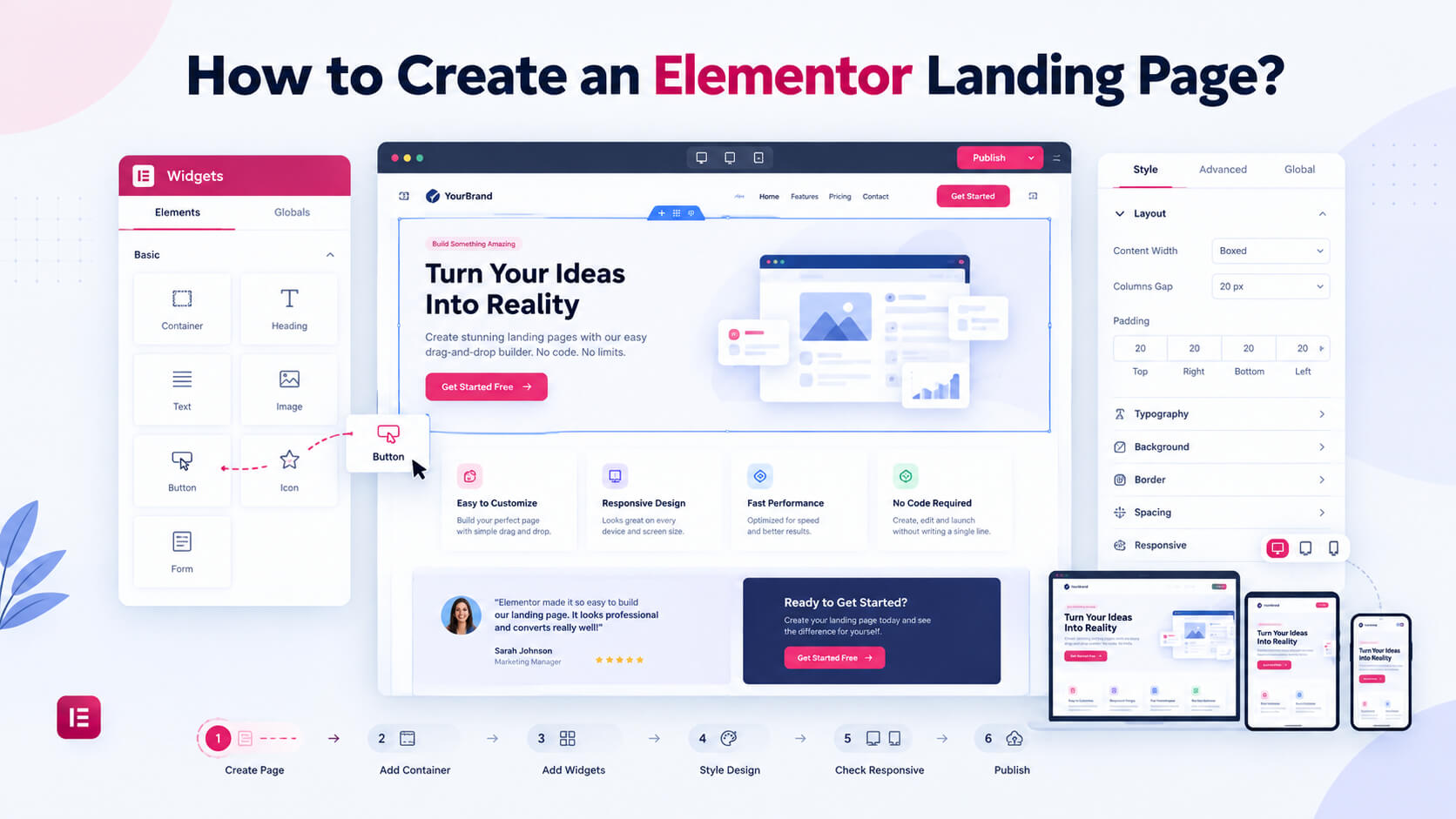
A landing page gives you a dedicated space to present an offer and encourage visitors to take the next step. You can use it to introduce a new product, grow your email list, attract webinar attendees, share downloadable resources, or generate consultation requests.
The key is to share useful details that show visitors why your offer is worth their attention. Unlike a homepage, an Elementor landing page is designed around a specific offer and goal. With Elementor, you can build that page visually using headings, images, buttons, forms, and other elements without creating the entire layout from scratch.
This guide walks you through building an Elementor landing page in WordPress from start to finish. You’ll learn how to structure the page, add forms and CTAs, optimize it for mobile and SEO, improve its speed, and track conversions.
What Is an Elementor Landing Page?

An Elementor landing page is a WordPress page built to achieve one main purpose. You can use it to promote a product, collect leads, increase registrations, share free resources, or get consultation bookings. Keep the content focused so visitors can quickly understand your offer and know what to do next.
For example, if you’re offering a free SEO audit, you can create a dedicated page explaining the offer, highlighting its benefits, and adding a simple form with a “Get My Free Audit” button.
Elementor landing pages can help you promote different types of offers and services. A service business can use one to generate inquiries, while a course creator can use one for registrations and a SaaS company can use one to promote free trials.
The idea is simple: give visitors one clear reason to stay and one clear action to take.
Landing Page vs Regular Website Page
A standard website page helps visitors browse your site and find information. It usually includes menus, links to other pages, and different sections to explore.
A landing page is built around one main goal and helps visitors understand what to do next. You don’t have to remove the navigation menu or change your entire website design.Pick a design that suits your offer and helps visitors take the next step easily.
For example, a landing page for paid ads may use a simple design with a clear CTA, while an SEO-focused landing page may include more content to answer questions and match what people are searching for.
The main difference is the purpose. A regular page helps visitors explore your website, while a landing page encourages them to take one specific action, such as signing up or buying a product.
What Do You Need to Create an Elementor Landing Page?
Before you start designing your landing page, decide what you want it to achieve and who you want to reach. Prepare the content, images, and other elements you’ll need. A little planning beforehand can make the design process easier and save time later.
First, you’ll need a WordPress website with Elementor installed and a compatible WordPress theme. You should also have the main content ready, including your offer, page copy, images, CTA, and the form or other method you want visitors to use.
Think about who will visit your page and what they expect to find. For example, a page offering a free beginner’s guide needs a different approach from one designed for business owners looking for a quote.
It’s also worth deciding whether Elementor Free or Elementor Pro fits your project. Your choice will depend on the widgets, forms, templates, theme-building tools, and other features you need. You don’t necessarily need Pro just because you’re creating a landing page.
How to Build a Landing Page in WordPress With Elementor?
After deciding what your landing page should achieve, you can start creating it with Elementor. Follow these steps to build a page that keeps visitors focused on your offer.
Step 1: Install Elementor
Open your WordPress dashboard and go to Plugins → Add New. Search for Elementor, click Install, and then activate the plugin. Once it is ready, you can use its visual editor to design your landing page without writing code.
Step 2: Create a New WordPress Page
Go to Pages → Add New and create a page for your offer. Give it a clear name, such as Free SEO Audit or Web Design Consultation. Save the page, then click Edit with Elementor to begin building your layout.
Step 3: Choose a Landing Page Layout
Start with an empty page if you want to design everything yourself, or pick an Elementor template to save time. Choose the layout that works best for your offer and delete any sections that don’t serve a clear purpose.
Step 4: Set the Page Layout
Before adding content, adjust the basic layout, including the page width, background, spacing, and typography. Keep the design clean and avoid unnecessary elements that may distract visitors from your main offer.
Step 5: Create the Hero Section
The hero section is the first thing visitors see. Add a clear headline that explains your offer, a short description, a relevant image, and a call-to-action (CTA) button. Make sure visitors can quickly understand what you’re offering and what they should do next.
Step 6: Add Your Main Offer
Explain what you’re offering and why it matters to your audience. It could be a product, service, consultation, ebook, course, or free trial. Include the details visitors need to understand the offer, but avoid adding unnecessary information.
Step 7: Add Benefits and Features
Explain what visitors will get and why it is useful to them. Highlight the main benefits, and use simple headings and short paragraphs to keep the content easy to follow.
Step 8: Add Social Proof
Build trust by adding genuine customer testimonials, reviews, client logos, ratings, or case studies. Choose proof that supports your offer and helps visitors feel more confident about taking the next step.
Step 9: Add a Lead Form or Conversion Element
Choose a conversion element based on your goal. You might need a contact form, signup form, booking button, or purchase button. Keep forms short and ask only for information you actually need.
Step 10: Add a Strong Call to Action
Your CTA should clearly tell visitors what to do next. Use specific text such as Get Started, Download the Guide, Request a Quote, or Book a Demo. You can repeat the same CTA throughout a longer landing page to keep the next step clear.
Step 11: Add the Final CTA
End the page with a final reminder of your offer and another CTA. This gives visitors one more chance to take action after reading the page. Keep the final section simple and make sure important links, such as privacy information, are still available when needed.
How to Design an Elementor Landing Page?
A good Elementor landing page doesn’t need a complicated design. Keep it clean, make the important information easy to spot, and avoid adding elements just because they look good.
Start with a clear visual hierarchy. Your headline should stand out first, followed by the supporting text and CTA. Make sure visitors can easily understand your offer and the next step they need to take.
Keep your fonts and text styles consistent. You don’t need several fonts or too many heading styles. A simple combination of headings, body text, and supporting text is usually enough.
Spacing also makes a difference. Keep enough space between sections to make the page comfortable to read without leaving unnecessary gaps. Use consistent spacing to make the page feel neat and easy to follow.
Use images that support your message. A product screenshot, service image, or relevant graphic can help explain your offer. Avoid adding stock images that don’t really add anything to the page.
How to Create a High-Converting Elementor Landing Page?
There is no single design that guarantees conversions. Your landing page needs to match the offer, the audience, and the action you want visitors to take.
Start by making sure the page matches the visitor’s expectations. If an ad promises a free SEO audit, the landing page should immediately show that same offer. Visitors shouldn’t have to search for what they came for.
Keep one main conversion goal. You can add CTA buttons in different sections, but keep them focused on one main goal. Offering too many choices may distract visitors and make it harder to decide what to do.
For longer landing pages, include FAQs and helpful content to address common questions and concerns. Address things like pricing, refunds, delivery, compatibility, or what happens after signup when they are relevant to your offer.
How to Optimize an Elementor Landing Page for Mobile?
Your landing page may look great on a desktop but still have problems on mobile. Text can be too large, buttons can be difficult to tap, and images may not fit the screen properly.
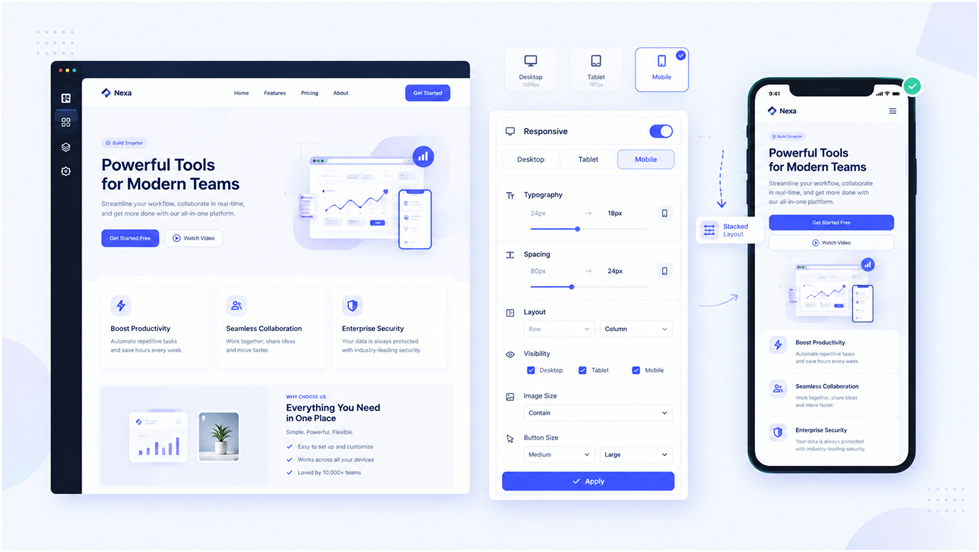
Use Elementor’s responsive settings to adjust the layout for smaller screens. Check your headings, spacing, images, buttons, forms, and other important elements.
Don’t rely only on Elementor’s mobile preview. Open the published page on an actual phone when possible and check how it feels to use.
Use readable headlines, tap-friendly CTA buttons, and simple forms that are easy to fill out on mobile devices. These small changes can make the page more user-friendly.
How to Add Forms to an Elementor Landing Page?
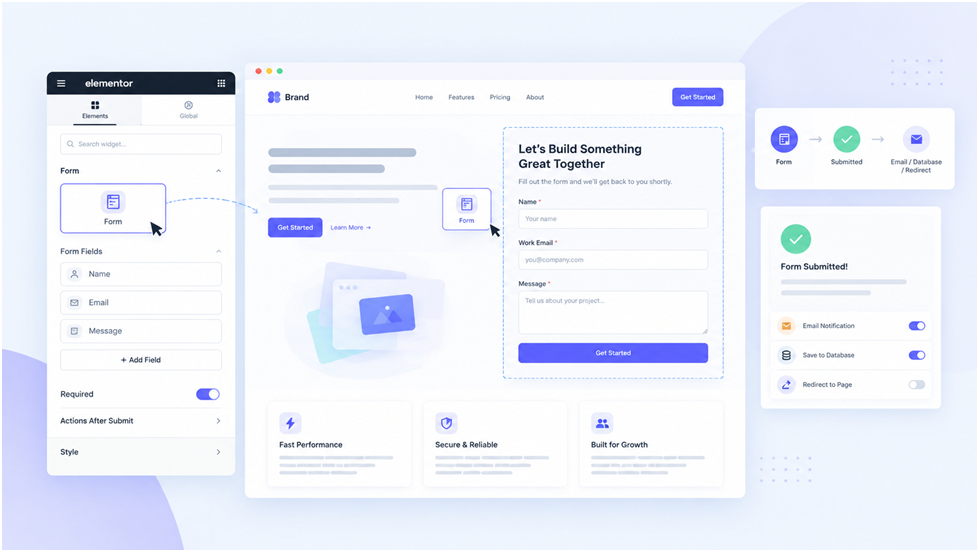
If your landing page is designed to generate leads, keep the form simple. Ask for the information you actually need and avoid adding unnecessary fields.
Depending on your Elementor setup, you may be able to send email notifications, connect the form with a CRM or email marketing service, show a confirmation message, or redirect visitors after submission.
Always test the form before publishing the page. Test the form yourself to confirm that emails are delivered, leads are recorded properly, and the confirmation message or redirect works correctly.
A well-designed form is only useful if it reliably captures submissions. Test the complete process from the visitor’s side.
How to Create an Elementor Landing Page Without a Header and Footer?
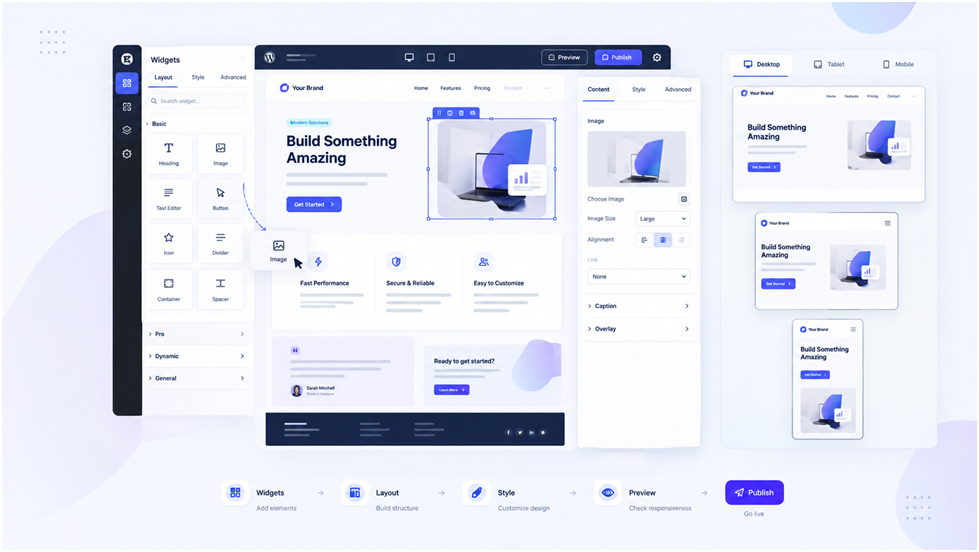
Removing the default header and footer can help keep visitors focused on your main offer by reducing distractions.
Depending on your Elementor and theme setup, you may be able to use a Canvas or Full Width layout to control how the header and footer appear.
After making the changes, preview the page and check that everything works properly. Make sure visitors can easily find essential links, including your privacy policy, whenever they need them.
The available layout options may vary depending on your Elementor version and WordPress theme.
How to Add an Elementor Landing Page Template?
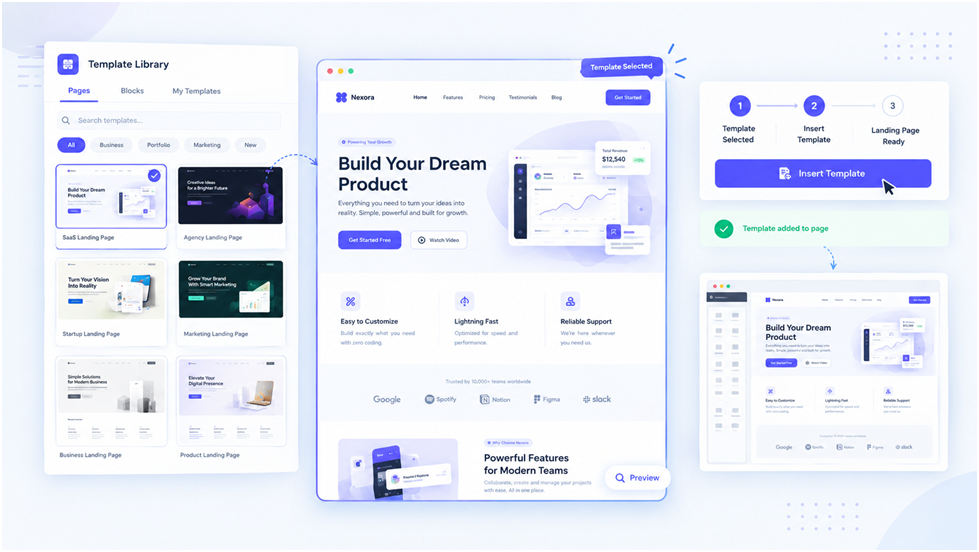
Elementor offers pre-designed templates that let you create landing pages faster without designing every section from the beginning. Open your page in Elementor and browse the available templates. Choose one that matches your goal, then customize it with your content, images, branding, forms, and CTA.
Before publishing, review the entire page. Remove unnecessary sections and add any information visitors need to make a decision. Treat the template as a starting point, not a finished page. Customize it to match your offer and audience.
How to Optimize an Elementor Landing Page for SEO?
Not every landing page needs to rank in Google. Some are created specifically for paid advertising, email campaigns, or social media traffic.
If you want your landing page to attract organic traffic, however, treat it like any other useful search-focused page.
Use a clear page title and H1 heading that explain what your landing page offers. Use your main keyword and relevant variations where they fit naturally. Avoid repeating the same terms too often, as this can make the content sound forced.
Images should also be optimized. Use descriptive filenames and appropriate alt text when the image communicates useful information. Large images should be compressed and sized appropriately before or after uploading.
Internal links can also be useful when they genuinely help visitors find related information. For example, a landing page about WordPress hosting might link to a relevant hosting guide or comparison.
Most importantly, don’t sacrifice usefulness for SEO. The page should still read naturally and answer the visitor’s questions.
How to Improve Elementor Landing Page Speed?
Elementor is only one part of your page speed. Your hosting, theme, plugins, images, fonts, animations, and third-party tools can all affect how quickly the page loads.
Start with large images. Compress them before uploading and use the right size for the space they will occupy on the page.
Then review the page itself. Remove animations, widgets, or third-party tools that you don’t really need. Review your font choices, caching settings, active plugins, and hosting environment to help improve page speed.
After making changes, test the live page again. This helps you see whether your changes actually improved the loading experience.
How to Track Elementor Landing Page Conversions?

Getting visitors to your landing page is only the first step. You also need to track what they do on the page. Choose a conversion goal that matches your purpose. For example, track form submissions for lead generation, purchases for product pages, or registrations for webinars.
You can also track CTA clicks, downloads, bookings, and phone calls. Connect your page to analytics or marketing tools and test the tracking to make sure everything works correctly before driving significant traffic to the page.
How to A/B Test an Elementor Landing Page?
Once your landing page gets enough traffic, A/B testing can help you compare different versions and see which changes affect your chosen conversion goal.
You can test things like headlines, CTA text, images, forms, testimonials, or page layouts. For example, you could compare “Book Your Free Demo” with “See How It Works.”
Try to test one major change at a time. If you change the headline, image, CTA, and form together, it becomes difficult to know which change affected the results.
Elementor may not provide all the testing features you need. Depending on your setup, you may need an A/B testing plugin or an external testing platform.
Common Elementor Landing Page Mistakes
A landing page doesn’t need to include every detail about your business or offer. Share the information visitors need to understand what you’re offering and why it matters. Keep the content focused and remove anything that doesn’t support your main goal.
Adding too many CTAs is another common mistake. For example, asking visitors to book a demo, download an ebook, and read your blog on the same page can distract them from the action you want them to take. Keep your calls to action consistent and focused on one primary goal.
Your landing page should also work well on mobile devices. Text that looks right on a desktop may appear too large on a phone, while buttons and forms may be difficult to use on smaller screens. Preview the page on different screen sizes and adjust the layout where needed.
Large images, too many animations, extra plugins, unclear headlines, and long forms can make your landing page harder to use. Before publishing, test all buttons and forms, check the confirmation message, review the mobile layout, and make sure conversion tracking is working.
Final Thoughts
Creating an Elementor landing page isn’t about adding more widgets or design effects. Start with one clear goal and build the page around it.
Think about your target audience, what you want them to do, and what they need to know before taking action. Use a clear headline, useful information, customer reviews, and a noticeable CTA. Keep forms short and provide enough details to help visitors decide.
Before publishing, test your forms, buttons, links, mobile layout, loading speed, and conversion tracking. Once your page gets enough traffic, try different headlines, CTAs, forms, or layouts to see what works best.
A good WordPress landing page built with Elementor doesn’t need to be complicated. It needs to communicate the offer clearly and make the next step easy for visitors.
FAQs
1. Can I create a landing page with Elementor for free?
Yes. Elementor has a free version, although some widgets, forms, templates, and advanced features require Elementor Pro or another tool.
2. How do I create an Elementor landing page in WordPress?
Create a new WordPress page, open it with Elementor, choose a blank layout or template, and add your content, CTA, and form. Check the mobile layout, test the page, and publish it.
3. Should I include navigation on an Elementor landing page?
No. You can remove the standard header and footer to create a more focused landing page with fewer distractions.
4. How can I collect leads through an Elementor landing page?
Yes. You can add a form using Elementor’s available features or a compatible form plugin. Always test the form before publishing.
5. How do I improve the SEO of an Elementor landing page?
Yes. You can optimize them with useful content, clear headings, relevant keywords, optimized images, internal links, and a mobile-friendly design.