
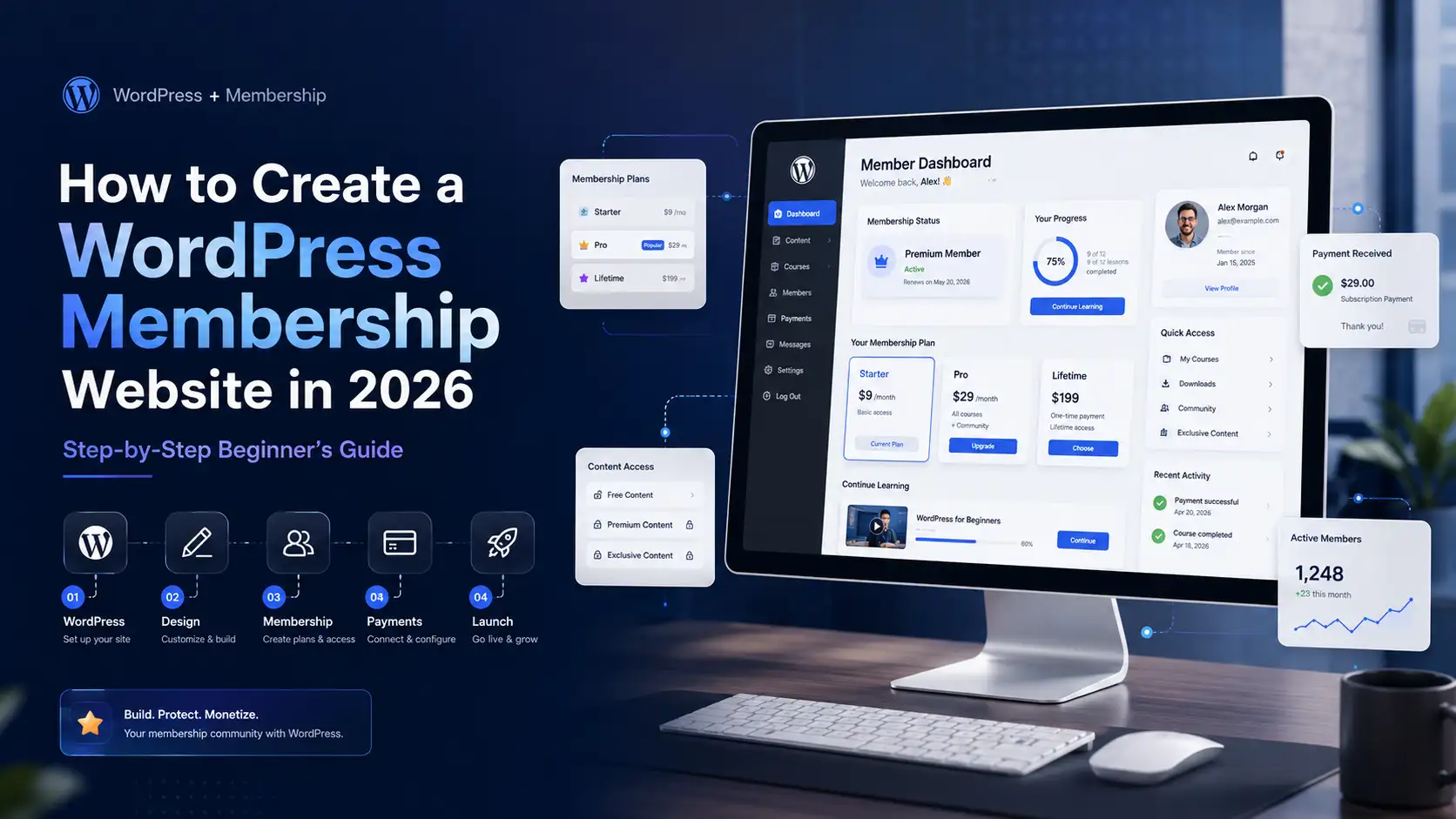
Have you ever wanted to create a website where people pay to access exclusive content, online courses, premium resources, or a private community?
That’s exactly what a WordPress membership website lets you do.
Instead of giving everyone access to your content, create membership plans that let people unlock content based on the plan they choose. It’s a great way to sell courses, coaching, premium content, private communities, or digital downloads while earning recurring income.
The best part? You don’t need to code or hire a developer. With WordPress, web hosting, and a membership plugin, you can build your website in just a few simple steps.
In this guide, you’ll learn how to build a WordPress membership website step by step, from choosing hosting to launching your website.
Get Ready: Membership Website Preparation Checklist
Before you start, take a few minutes to plan your membership website. You don’t need to have everything figured out. Just having a clear idea of what you want to build is enough to get started with confidence.
Before moving on, make sure you have these essentials ready:
- Define your niche and target audience.
- Decide what exclusive content or services you’ll offer.
- Choose your membership model (free, paid, subscription, or tiered).
- Plan your membership plans and pricing.
- Prepare your courses, videos, downloads, or other premium content.
- Choose a memorable domain name.
- Select a reliable WordPress hosting provider.
- Choose a WordPress membership plugin.
- Decide which payment gateways you’ll accept, such as Stripe or PayPal.
- Prepare your branding, including your logo, colors, and fonts.
- Plan your essential pages, such as Home, About, Pricing, Contact, Login, and Member Dashboard.
Quick Tip: You don’t need hundreds of lessons or multiple membership tiers before launching. Many successful WordPress membership websites start with a single course or a small library of premium content and expand as their audience grows.
Now that you’ve got a roadmap, it’s time to start building your WordPress membership website.
A 15-Step Process to Create a Membership Website
Building a membership website is easier than you might think. You don’t need coding skills—just the right tools and a few simple steps.
Follow this step-by-step guide to plan, build, and launch your membership website.
Step 1: Define Your WordPress Membership Website Goal
Start by asking yourself one simple question:
What problem am I helping people solve?
Your answer will shape your content, attract the right audience, and help you choose the best WordPress tools for your website.
For example, you might want to:
- Sell online courses.
- Build a private community.
- Offer one-on-one coaching.
- Share premium articles or videos.
- Provide downloadable templates, worksheets, or digital resources.
Imagine you’re a fitness coach. Instead of uploading workout videos to YouTube for free, you could build a WordPress membership website where subscribers receive new workout plans every week.
Or, if you’re a photographer, you could create a members-only website offering editing tutorials, Lightroom presets, and monthly live Q&A sessions.
Beginner Tip: Focus on solving one specific problem really well instead of trying to serve everyone. A focused WordPress membership website is much easier to build, market, and grow than one that’s too broad.
Step 2: Choose the Right Membership Model
Now that you know your website’s goal, it’s time to decide how people will access your content. This is called your membership model, and it determines how your website works and earns money.
For example, you can offer a free membership to grow your audience or a paid membership with monthly or yearly subscriptions for premium courses, coaching, or exclusive content. Choose the model that best fits your goals and audience.
Another popular option is a tiered membership model, where you create multiple membership levels with different benefits.
For example:
- Basic – Access to beginner lessons and selected resources.
- Pro – Advanced courses, downloadable templates, and exclusive content.
- Premium – Everything in Pro, plus live coaching, webinars, or private community access.
Beginner Tip: Keep your pricing simple when you’re just getting started. One or two well-defined membership plans are usually easier to manage than several complicated pricing tiers. You can always introduce additional plans as your website grows.
Step 3: Plan Your Membership Content, Features, and User Experience
Before you start installing plugins or customizing your WordPress website, take a moment to plan what your members will actually receive.
This step is important because people don’t join a membership website simply to create an account. They join because they expect valuable content, helpful resources, or access to a community they can’t find elsewhere.
Having a clear plan now will also make it much easier to choose the right WordPress theme, membership plugin, and other tools later. It helps you avoid installing unnecessary plugins or paying for features you may never use.
Start by asking yourself:
What value will members receive after they sign up?
Depending on your niche, you might offer:
- Online courses
- Video tutorials
- Premium articles
- Downloadable templates
- eBooks
- Webinars
- Private communities
- Coaching sessions
- Exclusive resources
For example, if you’re building a WordPress membership website for cooking enthusiasts, your members might receive weekly recipe videos, downloadable meal plans, shopping lists, and access to a private discussion group.
Once you’ve planned your content, think about how members will interact with your website.
Your WordPress membership website should make it easy for members to:
- Register and log in.
- Purchase the right membership plan.
- Access protected content.
- Manage their subscriptions.
- Find lessons or downloads quickly.
Depending on your goals, you may also want features like progress tracking, discussion forums, member profiles, certificates, or content dripping.
Don’t worry if that sounds like a long list.
You don’t need every feature before you launch. Start with the essentials, create a smooth user experience, and add more functionality as your membership grows.
Essential Features Every WordPress Membership Website Should Have
Before choosing a WordPress membership plugin, it’s helpful to know which features actually matter.
A good plugin should make it easy for visitors to register, log in securely, purchase memberships, and access protected content without confusion.
It should also support secure payment gateways, recurring subscriptions, email notifications, and a member dashboard where users can quickly find their courses, downloads, or exclusive resources.
If you’re planning to build a community, look for features such as member profiles, discussion forums, private messaging, or social groups.
Finally, don’t overlook mobile responsiveness. Many of your members will access your WordPress membership website from their phones, so your content should be easy to read and navigate on any device.
Beginner Tip: It’s tempting to install dozens of WordPress plugins, but more plugins don’t always create a better website. A clean, fast, and easy-to-use website usually provides a much better experience than one filled with unnecessary features.
Step 4: Choose WordPress Platform for Your Membership Website
One of the biggest decisions you’ll make is choosing the platform for your membership website.
If you’ve searched online, you’ve probably come across platforms like Wix, Squarespace, Shopify, Kajabi, and Thinkific. While these platforms can all help you create websites, they aren’t always the best choice if you want complete flexibility and long-term control.
That’s why this guide focuses on WordPress.
WordPress is one of the most popular website platforms in the world. It gives you full control over your website and lets you customize it with thousands of themes and plugins.
As your membership website grows, you can easily add new features without starting from scratch. Most hosting providers also make it easy to install WordPress with just a few clicks.
Why You’ll Need a WordPress Membership Plugin?
Although WordPress provides the foundation for your website, it doesn’t include membership features out of the box.
That’s where a WordPress membership plugin comes in.
The good news is that there are plenty of excellent WordPress membership plugins available.
Here are some of the best WordPress membership plugins to consider.
MemberPress lets you create memberships, protect content, accept recurring payments, and sell online courses. Plans start at $179.50/year. It’s a great all-in-one plugin, but it’s expensive for beginners.
SureMembers helps you protect content, manage members, and drip content. Plans start at $69/year. It’s simple and beginner-friendly but has fewer advanced features.
ARMember lets you create memberships, protect content, and accept payments. It also includes member directories and content dripping. Plans start at $89/year. It offers many features but has a steeper learning curve.
ProfileGrid is ideal for building member profiles and private communities. It offers a free version, while premium plans unlock more features. Some advanced tools require paid add-ons.
MemberMouse helps you manage memberships, recurring payments, and digital products. Plans start at $149.50/year. It’s powerful but may be costly for beginners.
Beginner Tip: Don’t spend too much time searching for the perfect plugin. Pick one that fits your budget and needs. You can always upgrade later as your website grows.
Step 5: Choose a Domain Name and WordPress Hosting
Now that you’ve decided to build your website with WordPress, it’s time to give it a home on the internet.
To do that, you’ll need two things:
A domain name – This is your website’s address, such as yourwebsite.com.
WordPress hosting – This is where your website’s files, images, and database are stored so visitors can access your site online.
Think of it this way: if your membership website were a physical store, your domain name would be the street address, and your hosting would be the building itself.
Both are essential, but choosing the right WordPress hosting is especially important. Since people are paying to access your content, your website should load quickly, stay online, and protect your members’ data.